| Предупреждение |
|---|
| Update to the required Traffic Monitor version is available from two previous releases. The update to 6.9 version can be installed from 6.7 and/or 6.5 versions. Releases history can be found in the article "Traffic Monitor: Main". |
| Предупреждение |
|---|
| Before updating the System it is required to apply configuration. If configuration is not to be applied before the update, it is to be forced. |
| Предупреждение |
|---|
| During the update, events are neiter intercepted, nor analyzed. |
| Информация |
|---|
| The System is installed from a connected repository. A repository is a folder that contains files and other folders and provides them on demand to the operating system. In other words, a repository is a storage from which programs can be installed or updated. Before using the repository, you need to connect the repository so that the operating system could access it (the connection procedure is described below). |
Before the update, make sure that you have: - InfoWatch Traffic Monitor distribution disk of the version to which you want to update the System;
- access to a physical or a virtual server (or servers) which you want to update;
- password for the root user.
Also, before the update, you need to find out: the System installation type (it can be All-in-one or Distributed installation Перед обновлением убедитесь в наличии: - дистрибутивных дисков ОС Astra Linux Smolensk;
- дистрибутивного диска InfoWatch Traffic Monitor той версии, до которой планируется обновление;
- доступа к физическому или виртуальному серверу (серверам), которые необходимо обновить;
Также до начала обновления требуется выяснить: Before the update, take the following steps: turn on each server you want to update (if off):
for a physical server - press the power button on the server (for details, see instructions for the server);for the virtual server - run Power On command (see the example below
До начала обновления выполните следующие действия: - Включите (если он был выключен) каждый сервер, предназначенный для обновления:
1) 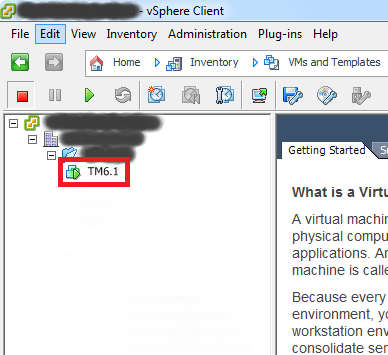 Image Removed - в случае физического сервера - нажмите кнопку включения, расположенную на корпусе сервера (подробнее см. в инструкции к серверу);
в случае виртуального сервера - выполните команду Power On (см. пример ниже). | Информация |
|---|
| This instruction contains examples of working with a virtual server in the client application of one of the most common virtualization environments | В настоящей инструкции приводятся примеры по работе с виртуальным сервером в клиентском приложении одной из наиболее часто используемых сред виртуализации - VMware vSphere (VMware vSphere Client). In frameworks, you can see interface areas that you need to click in the specified order to achieve the desired results. |
Run VMware vSphere Client application as administrator (right-click the application icon and select Run as administrator). Get authorized in the application using the login and password issued by the administrator of your network. Go to virtual machines: 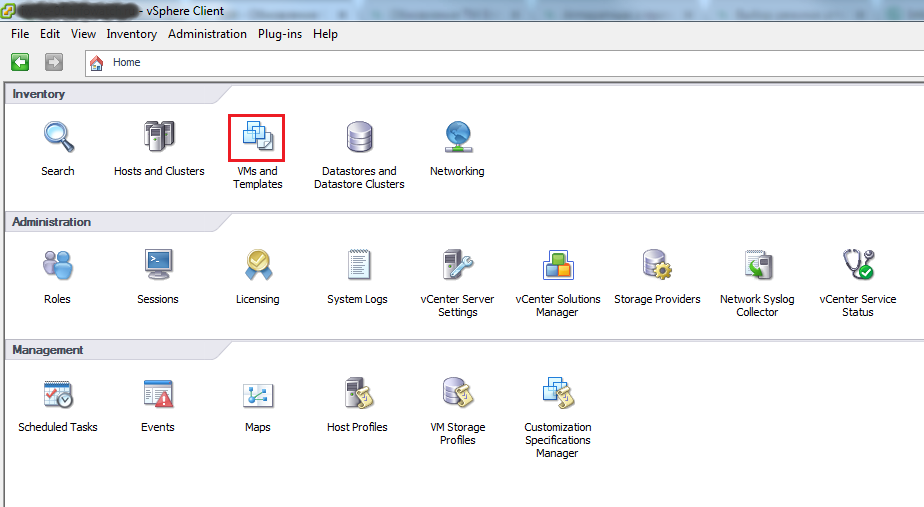 Image Removed
Consistently expand all the nodes in the left side of the workspace until you see the required virtual server.
Turn on the virtual server:
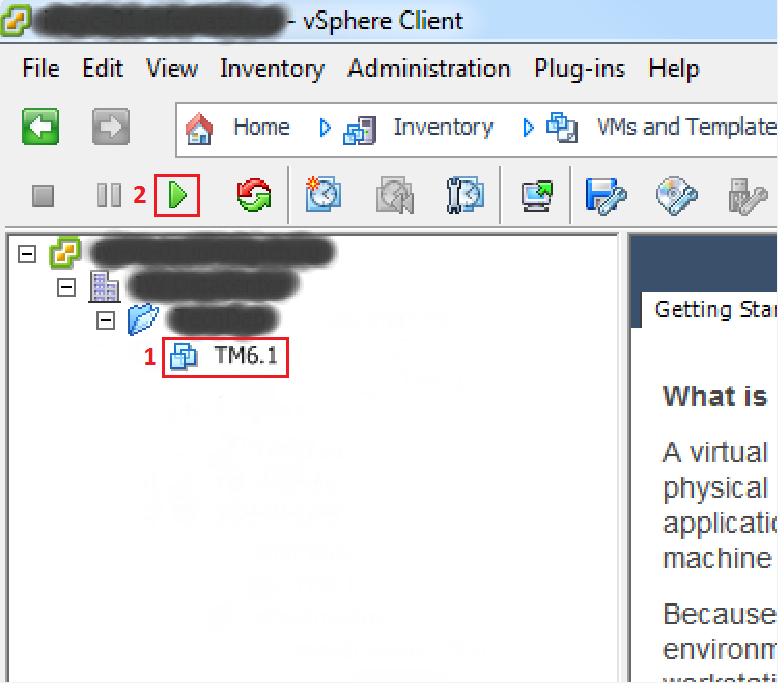 Image RemovedIn some time, the virtual server will start and the client application will look as follows: 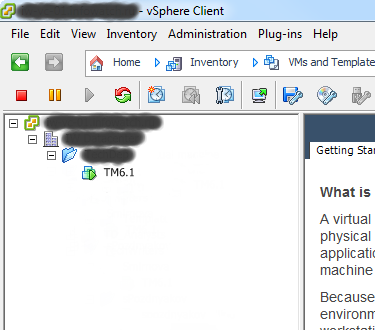 Image Removed
Connect InfoWatch Traffic Monitor distribution disk to the servers you want to update:
- for a physical server:
- if the distribution kit is on the optical disc - insert the disk into CD or DVD drive of the server and wait until the server reads the disk;
- if the distribution kit is in the form of ISO-image - mount the disk image using tools of your operative system;
- for a virtual server:
- if the distribution kit is on the optical disc - insert the disk into CD or DVD drive of the computer where you are working and then connect the disk to the virtual server (see the example below);
- if the distribution kit is in the form of ISO-image - mount the disk image using tools of your operative system and then connect the disk to the virtual server (see the example below).
| Информация |
|---|
| The example assumes that the distribution disc is in the F device of the computer from which TM virtual server is being updated (i.e., the computer from which we logged into VMware vSphere Client). |
Рамками на рисунках выделены области интерфейса, которые нужно последовательно выделять щелчком мыши для достижения требуемых результатов. |
Запустите клиентское приложение VMware vSphere Client от имени администратора (щелкните правой кнопкой мыши на иконке приложения и выберите Запуск от имени администратора). Войдите в приложение, используя логин и пароль, выданные администратором вашей информационной сети. Перейдите в раздел с виртуальными машинами: Image Added Последовательно раскройте все узлы в левой части рабочей области, пока не дойдете до нужного виртуального сервера. Включите виртуальный сервер: Image AddedЧерез некоторое время виртуальный сервер включится, и клиентское приложение примет вид: Image Added
- Подключите дистрибутивный диск InfoWatch Traffic Monitor к серверам, предназначенным для обновления:
- в случае физического сервера:
- если дистрибутив поставлен на оптическом диске - вставьте диск в cd- или dvd-привод сервера и дождитесь, пока сервер прочитает диск;
- если диск поставлен в виде ISO-образа - смонтируйте образ средствами вашей операционной системы;
- в случае виртуального сервера:
- если дистрибутив поставлен на оптическом диске - вставьте диск в cd- или dvd-привод компьютера, на котором ведете работу, а затем подключите диск к виртуальному серверу (см. пример ниже);
- если диск поставлен в виде ISO-образа, смонтируйте образ средствами вашей операционной системы, а затем подключите диск к виртуальному серверу (см. пример ниже).
| Информация |
|---|
| В примере предполагается, что дистрибутивный диск находится в устройстве F компьютера, с которого осуществляется обновление виртуального сервера TM (то есть компьютера, с которого выполнен вход в VMware vSphere Client). |
1) 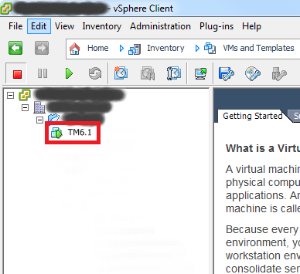 Image Added 2) 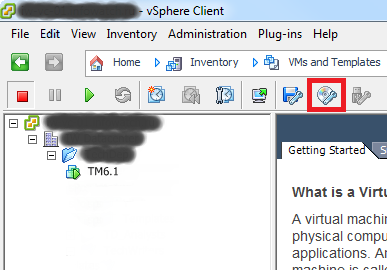 Image Removed 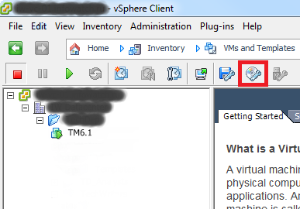 Image Added 3) 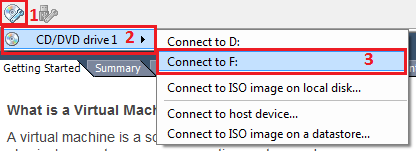 Image Removed Almost immediately after clicking 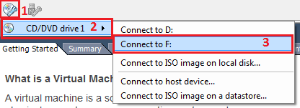 Image Added
Практически сразу после нажатия Connect to F: the disk will be connected to the virtual server and the menu will look as follows:  Image Removed
When the distribution disk is installed, everything is ready for the update. Update the servers following these instructions: Updating TM диск подключится к виртуальному серверу, и меню примет вид:
Image Added
Обновите серверы согласно следующим инструкциям: Note For information how to update Device Monitor Server and Agents, see | После обновления Системы предустановленные привилегии на полное управление запросами и отчетами для пользователей с ролями Офицер безопасности и Администратор в Системе отсутствуют. |
|