Дерево страниц

Сравнение версий

Ключ

  • Эта строка добавлена.
  • Эта строка удалена.
  • Изменено форматирование.
Комментарий: Published by Scroll Versions from space DMOWT and version 7.21

...

Sv translation
languageen
Предупреждение
titleWarning!

The functionality is for InfoWatch Activity Monitor only.

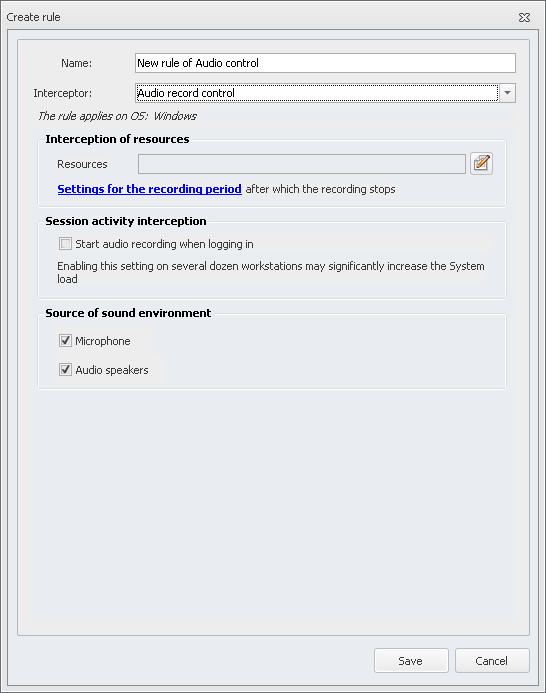
The Audio record control interceptor allows you to monitor actions of employees via possibility to control sound around the empoyeeemployee's workstation1.

In the rule you can configure:

  • Interception of resources – audio recording when using the specified resources2
  • Session activity interception – audio recording throughout the entire period of work session, from user login to logout3. When locking the workstation, recording is not interrupted.
  • Source of sound environment – you can select one or two types of sound environment source: microphone4 and/or audio speakers.
Предупреждение
titleWarning!

Resources interception applies starting from Device Monitor version 7.8.0.

Session activity interception applies starting from Device Monitor version 7.12.0.

Selection of the source of sound environment applies from Device Monitor version 7.15.0.

Herewith the interception works if the version of Agent is not earlier than the version of Device Monitor server.

Информация
titleNote:

The rule applies on computers with Windows OS.

To configure the rule:

  1. Open the Create rule window window (see "Создание правил") and in the Name field, specify the rule name.
  2. In the Interceptor field, select Audio record control.
  3. If you want to add resources for interception:
    1. Click .

    2. In the window that opens, select from the Available lists the lists you need (when using these resources, audio recording is to start) and move them to the Added lists area by clicking .
    3. Click Save.
    4. Click Settings for the recording period to to specify the period throughout which you need the System to record audio. For details, see "Настройка записи аудио/видео".
  4. If you want to enable session activity interception:
    1. Select the option Start audio recording when logging in.
    2. In the warning window that opens, click Yes.

      Предупреждение
      titleWarning!

      Regular session activity interception on several dozen workstations may cause the excessive growth of number of events and significantly increase the load on the network and on Device Monitor and Activity Monitor servers.

  5. Select the type of source from which to record sound environment:
    • Microphone
      and/or
    • Audio speakers
      If several devices of the same type are connected to the workstation, then the one with the biggest audio signal amplitude is chosen for recording. Also you can specify additional parameters for selecting a device for audio interception. You can do it in the "Инженерные настройки агента" section section.
  6. When all parameters are configured, click Save.
Информация
titleNote:

Якорь
1
1
1 If when the rule is triggered, something that makes audio recording impossible happens (for example, the microphone malfunction), then the event may be containing a mute audio recording (you hear no sound when you play it). 

Якорь
2
2
2 The System verifies if the resource being visited by a user matches the one in the list of resources only if one of the browsers is used:

  • Chrome
  • Yandex . Browser
  • Mozilla Firefox
  • Edge (Chromium)
  • Opera

Якорь
3
3
3 When logging out via the Start menu, the operating system forcibly terminates the process of audio interception. In this regard, the last chunk of audiodata audio data cannot be intercepted. This chunk length is no more than one minute.

Якорь
4
4
4 When a person is using a Bluetooth headset for sound playback, sound interception via the headset microphone may lead to playback interruption. During the interception, further playback will be available in lower quality via Hands-Free or Headset profiles (HFP/HSP).