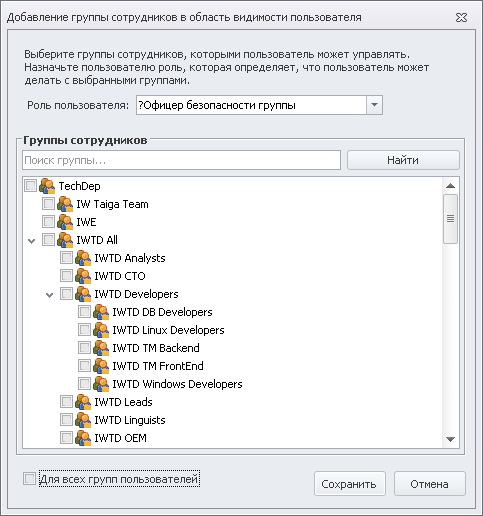
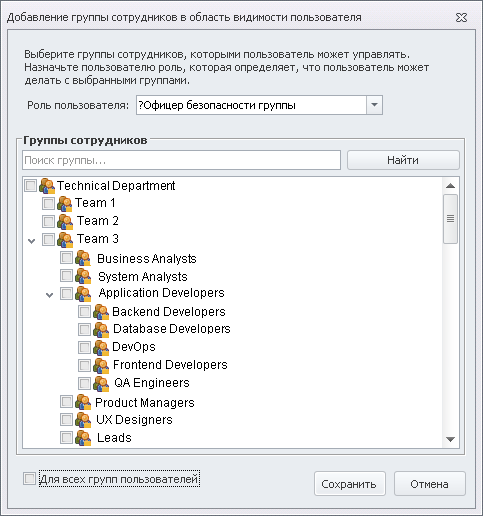
Adding a user role for groups of employees (computers) To add a group of employees to the user's visibility scope: - Open the Creating user (or Editing user) dialog box.
- In the Can see employees (Can see computers) block, click Add.
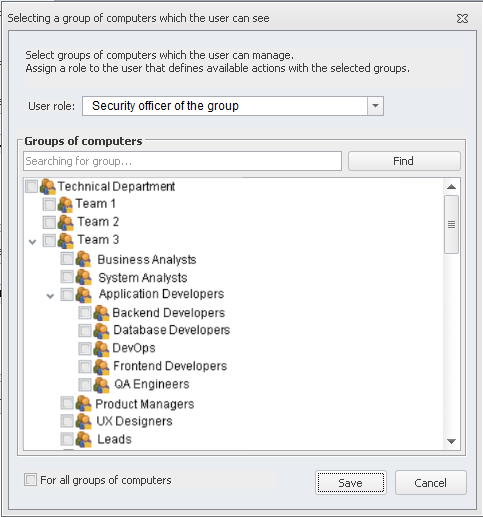 Image Modified - In the window that opens:
- Specify User role;
- Select one or more groups of employees (or computers) from the tree structure or use the search field. Select For all user groups (For all computer groups) if you need to add all groups.
- Click Save.
In the Editing user window, click Save.
Editing a user role for groups of employees (computers) To change access permissions to the user's visibility scope: - Open the Editing user dialog box.
- In the Can see employees (Can see computers) block, select the required group.
- Click Edit.
- In the window that opens, assign a role that defines user actions with the group. Further actions with employees (computers) will be performed according to the role privileges.
- Click Save.
To remove a user role: - Open the Editing user dialog box.
- In the Can see employees (Can see computers) block, select the required group.
- Click Delete.
- Click Yes for confirmation. The selected role will be removed from the user.
Configuring user common roles To assign common roles to the user: - Open the Creating user (or Editing user) dialog box.
- In the Common roles block, click Select.
- In the window that opens, select roles that determine actions available to the user.
- Click Save.
To remove common user roles: - Open the Editing user dialog box.
- In the Common roles block, select the role you want to remove.
- In the window that opens, click Delete. The common role will be removed from the user.
|