Дерево страниц

Сравнение версий

Ключ

  • Эта строка добавлена.
  • Эта строка удалена.
  • Изменено форматирование.
Комментарий: Published by Scroll Versions from space TMINT and version 6.10
Sv translation
languageru

Установка производится на сервере IBM Lotus Domino с помощью инсталяционного пакета.

Предупреждение
titleВажно!

Пользователь, выполняющий установку, должен обладать правами локального администратора на данном компьютере.

Предупреждение
titleВажно!

Перед началом установки убедитесь, что на сервере InfoWatch Traffic Monitor запущена служба  iw_expressdслужбы iw_xapi_xapi и iw_xapi_puppy.


Шаги установки:

  1. На диске с дистрибутивом запустите файл (на выбор):
    • pluginplatform.3.0.0.x.Lotus.x64.ru.msi (для русскоязычного интерфейса мастера установки на 64-разрядной ОСразрядную версию Lotus Domino Server);
    • pluginplatform.3.0.0.x.Lotus.x64.en.msi (для англоязычного интерфейса мастера установки на 64-разрядной ОСразрядную версию Lotus Domino Server);
    • pluginplatform.3.0.0.x.Lotus.x86.ru.msi (для русскоязычного интерфейса мастера установки на 32-разрядной ОСразрядную версию Lotus Domino Server);
    • pluginplatform.3.0.0.x.Lotus.x86.en.msi (для англоязычного интерфейса мастера установки на 32-разрядной ОСразрядную версию Lotus Domino Server);
  2. Нажмите  Далее в окне приветствия мастера установки.
  3. Ознакомьтесь и примите условия лицензионного соглашения и нажмите Далее.
  4. InfoWatch Integration Adapter реализован в виде службы Windows, не поддерживает установку для отдельных пользователей и устанавливается в общую для всех пользователей папку. Нажмите Далее.
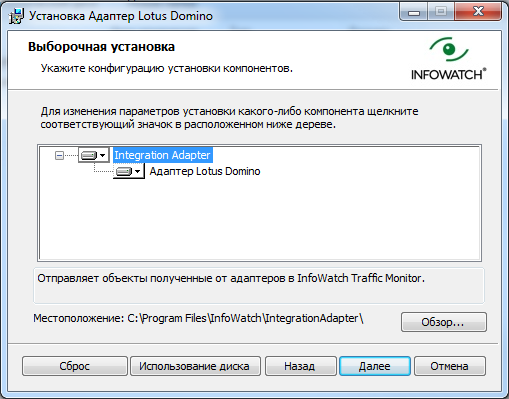
  5. Установка плагина происходит совместно с установкой Интеграционной платформы. Выберите плагин по пересылке контекстов Lotus Domino и установите ему опцию «Будет установлен на локальный жесткий диск». 
  6. Измените папку установки (если необходимо). Для этого выберите компонент Integration Adapter  и нажмите Обзор. По умолчанию установка производится в папку: C:\Program Files\InfoWatch\IntegrationAdapter.
  7. Нажмите  Далее.
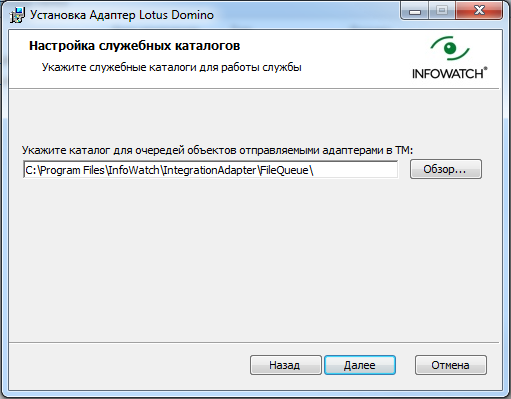
  8. Укажите каталог очередей объектов - каталог, в котором создаются файловые очереди событий, отправляемые адаптером в ТМ. Для изменения соответствующего каталога нажмите Обзор.
  9. Нажмите Далее.
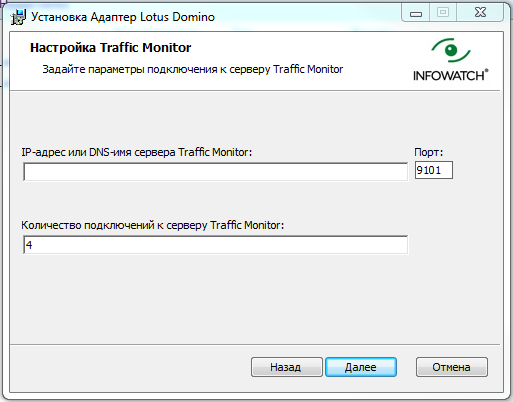
  10. Настройте параметры соединения с сервером InfoWatch Traffic Monitor. Укажите:
    • IP-адрес или DNS-имя сервера InfoWatch Traffic Monitor;
    • Порт сервера InfoWatch Traffic Monitor, через который будет осуществляться доставка событий (по умолчанию  9101);
    • Количество подключений к серверу InfoWatch Traffic Monitor. Вы можете задать от 1 до 32 подключений. Значение по умолчанию – 4.
  11. Нажмите Далее.
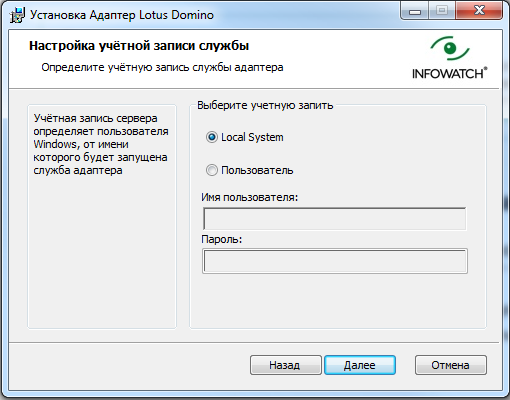
  12. Определите учетную запись службы адаптера: Local System или Пользователь, от имени которого будет запущена служба адаптера. В последнем случае необходимо ввести имя пользователя и пароль.
  13. Нажмите  Далее.
  14. Укажите папку установки сервера Lotus Domino и папку очереди теневых копий:
  15. Нажмите Далее.
  16. Задайте параметры конфигурации перехватчика:
    • В поле Папка очереди контекстов событий укажите директорию, в которой будут храниться тело и вложения сообщений, полученных от Lotus Domino.
    • В поле Макс. размер тела сообщений укажите максимальный размер (без учета вложений) перехватываемого почтового сообщения в байтах. Сообщения с размером (без учета вложений), превышающим указанный в данном поле, будут перехвачены и отправлены в InfoWatch Traffic Monitor, однако содержимое (не затрагивая вложений) таких сообщений будет обрезано до указанного размера.
    • В поле Макс. размер суммарных вложений укажите максимальный суммарный размер вложений сообщения в байтах. В случае превышения указанного размера письмо приходит с вложением(-ями) нулевого размера, а вложения удаляются.
    • В поле Текст замены зашифрованного содержимого укажите строку, которой будут замещаться зашифрованные части почтового сообщения.
    • В поле Фильтровать домены через запятую укажите домены отправителей, почтовые сообщения которых должны отправляться в InfoWatch Traffic Monitor.

      Примечание
      titleПример:

      Если нужно перехватывать сообщения от отправителей в доменах a_test.ru, b_test.ru и best.ru, можно перечислить эти домены через запятую, либо просто указать est.ru, но в этом случае будут перехватываться сообщения и от пользователей доменов test.ru, brest.ru и т.д.

    Примечание
    titleПримечание:

    Если оставить поле Фильтровать домены пустым, то будут перехватываться все почтовые сообщения, передающиеся по NRPC.

  17. Подтвердите правильность указанных параметров установки, нажав Установить.
  18. После успешного завершения установки мастер установки отобразит окно с уведомлением. Нажмите Готово.
  19. Перезагрузите сервер IBM Lotus Domino.


Sv translation
languageen

Lotus Domino Adapter is installed on IBM Lotus Domino server by using the installation package.

Предупреждение
titleImportant!

To install the adapter, you need local administrator rights on the computer.

Предупреждение
titleImportant!

Before the installation, make sure that iw_xapi_xapi and iw_expressd service is _xapi_puppy services are running on InfoWatch Traffic Monitor server.

Installation steps:

  1. On the disk with the distribution kit, run one of the following files: 
    • pluginplatform.3.0.0.x.Lotus.x64.ru.msi (to run the installation on a 64-bit version of Lotus Domino Server with Russian interface language)
    • pluginplatform.3.0.0.x.Lotus.x64.en.msi (for 64 bit OS (to run the installation on a 64-bit version of Lotus Domino Server with English interface language)
    • pluginplatform.3.0.0.x.Lotus.x86.ru.msi (to run the installation on a 32-bit version of Lotus Domino Server with Russian interface language)
    • pluginplatform.3.0.0.x.Lotus.x86.en.msi (for 32 bit OS (to run the installation on a 32-bit version of Lotus Domino Server with English interface language)

    The Installation Wizard welcome screen will appear.

  2. Click Next.
  3. Read the license agreement and click Next to accept it.
  4. InfoWatch Integration Adapter is implemented as a Windows service. It is installed to a common folder available to all users. Installation for individual users is not supported. Click Next.
  5. The plugin is installed together with the Integration Platform. Choose Lotus Domino plugin for sending contexts and then select Will be installed on the local hard drive option for this plugin.
  6. If necessary, choose a different installation folder. For this, select Integration Adapter and click Browse.

    By default, the adapter is installed to: C:\Program Files\InfoWatch\IntegrationAdapter. 


  7. Click Next.
  8. Specify a folder for object queues. File queues of events the adapter sends to TM will be created in this folder. To choose a folder, click Browse.
  9. Click Next.
  10. Configure the connection with InfoWatch Traffic Monitor server. Specify:
    • An IP address or DNS name of InfoWatch Traffic Monitor server
    • InfoWatch Traffic Monitor server port through which events will be delivered (by default,  9101)
    • The number of connections to InfoWatch Traffic Monitor server. Can be in the range from 1 to 32. The default value is 4.
  11. Click Next.
  12. Choose an account of the adapter service: Local System or User on whose behalf the adapter service will be started. For User, you need to enter the user name and password.
  13. Click Next.
  14. Choose the installation folder for Lotus Domino server and a shadow copy queue folder.
  15. Click Next.
  16. Specify parameters of the interceptor:
    • In the Event context queue folder field, specify a folder that will store email bodies and attachments of messages received from Lotus Domino.
    • In the Max message body size field, specify the maximum size (in bytes) of intercepted email (excluding attachments). Messages of larger size will also be intercepted and sent to InfoWatch Traffic Monitor, but their size will be reduced to the specified value (attachments will remain).
    • In the Max attachments size field, specify the maximum total size (in bytes) of message attachments. Attachments of larger size will be deleted and the message will be delivered with attachment(s) of zero size.
    • In the Text to replace encrypted content field, specify a string to replace encrypted parts of mail messages.
    • In the Domain filter field, specify domains of senders whose messages should be sent to InfoWatch Traffic Monitor. Domains should be separated by commas.

      Примечание
      titleExample:

      If you need to intercept messages from senders who belong to a_test.com, b_test.com, and best.com domains, you can list these domains separated by commas. Or you can specify est.com domain, but in this case messages from users of test.com or brest.com domains will also be intercepted. 

      Информация
      titleNote:

      If the Domain filter field is empty, the System will intercept all mail messages that are sent through NRPC.

  17. Make sure that all settings are correct and click Install.
  18. When the installation is complete, the Installation Wizard will display a notification window. Click Ready.
  19. Restart IBM Lotus Domino server.