The update is to be held within Updating PostgreSQL DBMS from version 9.4 to version 9.6 is performed in the console of the server to be updatedwhich you update. The update process can be performed in two modes: - BACKUP - in this mode entire DB is being copied, including all the IWTM DB scheme tablespaces. In BACKUP mode, it is recommended to store files on the following devices only:
- External disk having file systems Ext4, XFS;
- Remote block device connected via protocols iSCSI, NFS;
- Block device connected locally, having file systems Ext4, XFS.
The disk, where IWTM DB scheme tablespaces are located should contain as much free space as they have already taken;
- LINK - in this mode DB files are not being copied and the hard links are created from new folders instead of long-time DB. Once the new version is installed and launched, the old one doesn't operate. That's why before updating the DB in the LINK mode it is required totally backing up the previous DB including all the tablespaces. In this mode you may require up to 100 Mb free space.
Preparations for update Before updating the SMDB| Информация |
|---|
| If you connect remotely via SSH, it is recommended using the Screen utility. Thus you can avoid problems in case of lost connection with updating server. When disconnecting from the utility, all the prcocesses started are not to be interrupted and you may safely continue the System update. Important! Using Screen is highly recommended when working with DB and updating DBMS. Basic commands: screen - start the utility;Ctrl+a d - disconnect from screen (to be input within the screen window);screen -ls - display the list of screen running;screen -r - connect to screen again;screen -r name - connect to specific screen with «name»;exit - exit screen (to be input within the screen window).
|
Prepare for update - Back up DB.
- Before updating the DBMS, Traffic Monitor packages are required updating up to actual version, new version PostgreSQL packages are to be installed along with it.Set up the update script
- To successfully update PostgreSQL DBMS to version 9.6, version 9.4 must be installed in the System. Check the version of DBMS installed. For this purpose:
a. Enter the command to open the file manager:
mc
b. Go to /opt/iw/tm5/csw/postgres/scripts/update_from_version 1_to_version_2 directory, where
Example: u01/postgres directory
c. Select the file PG_VERSION, where the current DBMS version is specified and press F3 to view the content:  Image Added
d. Press F3 to close the file.
If version 9.6 is already installed in the System, then do not run DBMS update and follow the instruction on updating the System. - Set up the update script. For this purpose:
- Go to
/opt/iw/tm5/csw/postgres/scripts/update_from_9.4_to_9.6 directory.
c. Select the file pdate_from_версия 1_to_версия 2.sh and press F4 to edit it.
Example:
- Highlight the file
update_from_9.4_to_9.6.sh
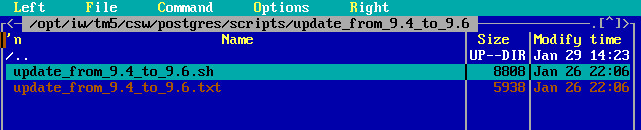 Image Removed
d. - and press F4 to edit it.
 Image Added - Depending on the mode you've selected replace the value of
UPDATEMODE parameter with BACKUP or LINK (by default - BACKUP).
e. - Set the value of
PARALLEL_DEGREE parameter equal to the number of DB server CPU cores (by default - 8). This parameter influences the update processing speed.
f. - Press F2.
g. - In the opened window ensure saving the file by clicking Save.
h. - Press F10.
i. - Press F3 and make sure the file is correct, then press F3 again to close the file.
j. - Enter the command to close file manager:
exit
- Before updating the SMDB all DBMS all Traffic Monitor services should be stopped. Enter the commands for this purpose:
a. - For Traffic Monitor All-in-one installation:
service iwtm stop
service iwtm-php-fpm stop
service
nags nagios stop
b. For Traffic - For Traffic Monitor distributed installation:
i. - On Traffic Monitor server:
service service iwtm stop
service iwtm-php-fpm stop
service
nags nagios stop
ii. - On DB server:
service iwtm stop
Update- Enter the command to go to the required directory:
cd /opt/iw/tm5/csw/postgres/scripts/update_from_<version_1>_to_<version_2>
where <version_1> - old SMBD version, <version_2> - new SMBD version.
Example:
cd /opt/iw/tm5/csw/postgres/scripts/update_from_9.4_to_9.6 - Set up the update script. For this purpose enter the command:
bash ./update_from_<version_1>_to_<version_2>.sh
Example:
bash ./update_from_9.4_to_9.6.sh
Once the update is over, the following message will be displayed:  Image Added
After the update process is over, connect to DB and check its working capacity: a. To connect to DB server from console, enter the command:
su - iwtm
psql postgres iwtm -p 5433
b. To verify the version of SMDB installed enter the commandEnter the commands:
select version();
c. Then enter the commands:
select* from version;
explain (analyze, buffers) select * from object_comment;
The commands
should have to be
entered executed with no mistakes.
d. To exit enter the command:
\q
e. Enter the command:
exit | Информация |
|---|
| Also, this check can be performed on Windows managed computers. pgAdmin should be used for this purpose. The check is to be performed using the same commands ( |
steps
. and c.
- Follow the System updates instructions.
An old Old DB backup removal If BACKUP update mode is used, the System creates an old DB backup. | Информация |
|---|
| Before removing the new version, working capacity should be checked: make sure the events are loaded into DB and the events search is active. Few days are required for this purpose. |
Removing is to be performed within the DB server console. To remove old DB backup, enter the command: - Enter the command to go to the required directory:
cd /var/log/infowatch/update/postgres<version_2>postgres96_update_дата
где <version_2> - SMDB new version, date
where date - update date.
Example:
cd /var/log/infowatch/update/postgres96_update_2018-01-29_15:37:06 - Set up the removal script. For this purpose enter the command:
bash ./delete_old_cluster.sh Removal process cannot be displayed within the console and is successful in case there is no error message. | Предупреждение |
|---|
| Once backup is removed, back to remain is impossible. |
Update fallbackrollback| Информация |
|---|
| DBMS update rollback is used only in case of repeated update, once the error occured. |
The update fallback rollback is possible, when:
- The update was performed in BACKUP mode;
- Before the update backup was manually created in LINK mode.
The update fallback rollback is to be performed within the DB console. To fallback it is required:Error alert rollback the update it is required: - If the update was performed in BACKUP mode:
- Enter the command to go to the required directory:
cd /opt/iw/tm5/csw/postgres/scripts/update_from_9.4_to_9.6 - To run the update rollback script, enter the command:
bash ./update_from_9.4_to_9.6.sh rollback
- If the update was performed in LINK mode:
- To stop
postgresql and pgagent services of old and new versions, enter the commands:
service pgagent-9.4 stop
service pgagent-9.6 stop
service postgresql-9.4 stop
service postgresql-9.6 stop - Replace the updated files and DB directories with the ones that were created as the reserved copies.
- To start
postgresql and pgagent services of old version, enter the commands:
service pgagent-9.4 start
service postgresql-9.4 start
Error alertIf an error occurs, the logs should be collected and sent to Service Desk. If an error occurred: - During the update or when the update services were started:1.
- Logs from the update folder.
Example: /var/log/infowatch/update/postgres96_update_2018-01-29_15:37:06
2. - All the logs from folders
/u01/postgres*/pg_log.
- During the update fallbackrollback:1.
- File
named rollback- named
rollback.log from updates lost folder.
Example: /var/log/infowatch/update/postgres96_update_2018-01-29_15:37:06
2. All - All the logs from folders
u01/postgres*/pg_log.
| 
