Дерево страниц

Сравнение версий

Ключ

  • Эта строка добавлена.
  • Эта строка удалена.
  • Изменено форматирование.
Комментарий: Published by Scroll Versions from space TMIG and version 7.16
Sv translation
languageru
Предупреждение
titleВажно!
  • Обновление до версии 7.1416.x поддерживается с версий 7.1214.x и 7.1315.x. Порядок выпуска версий Системы указан в статье Документация InfoWatch Traffic Monitor.
  • Обновление Traffic Monitor не поддерживается при подключении к серверу с помощью HP Integrated Lights Out (ILO).
  • Во время обновления Системы перехват и анализ событий работать не будут.
Информация
titleПримечание:

Обновление Системы происходит с использованием подключаемого репозитория.

Репозиторий – это папка, содержащая файлы и другие папки и предоставляющая их по запросу ОС. Другими словами, репозиторий – это хранилище, из которого устанавливаются и обновляются программы. Перед использованием нужно подключить репозиторий, чтобы ОС могла к нему обращаться.Инструкция по работе с репозиториями доступна на официальном сайте Red Hat Enterprise Linux (на английском).

Информация
titleПримечание:

В процессе обновления IW Traffic Monitor будут выполнены действия, требующие прав sysdba:

Раскрыть
titleпри использовании СУБД Oracle
  • создание триггера iwtm_logon_trg, который нужен для доступа пользователей iwtm_linux и iwtm_web к объектам схемы iwtm;
  • создание процедуры sp_iwtm_execute_os_command для выполнения команд ОС при создании, удалении, архивации и восстановлении файлов табличных пространств;
  • настройка профиля пользователя по умолчанию (время жизни пароля, максимальное количество изменений пароля и максимальное количество попыток соединения);
  • настройка служебных окон планировщика dbms_scheduler;
  • отключение доступа к XDB по HTTP-протоколу;
  • отключение диспетчера dispatcher, т. к. используется выделенный сервер;
  • выдача пользователю iwtm:
    • прав для установки, обновления и удаления схемы БД;
    • прав для создания, удаления, архивации и восстановления табличных пространств;
    • прав, используемых в коде продукта InfoWatch Traffic Monitor;
    • прав для просмотра статистики БД.
Раскрыть
titleпри использовании СУБД PostgreSQL
  • создание оберточных функций для чтения файлов, остановки и обрывания сессий, создания табличных пространств и выдача iwtm прав на них;
  • удаление всех представлений (view) и функций из схемы iwtm для создания в новой версии нужных с помощью обновления;
  • выдача пользователю iwtm:
    • прав на создание объектов в БД;
    • прав для установки, обновления и удаления схемы БД;
    • прав для создания, удаления, архивации и восстановления табличных пространств;
    • прав на функции обнуления статистики сервера postgres, которые используются в скрипте диагностики pgstat;
    • прав на статистические представления (view) и таблицы, для сбора статистики работы БД;
    • прав, используемых в коде продукта InfoWatch Traffic Monitor;
    • прав для просмотра статистики БД;
    • прав на схему pgagent для создания и управления заданиями (job).

Перед обновлением

До начала обновления:

  • Примените конфигурацию. Если не применить конфигурацию перед обновлением, она будет применена принудительно.
  • Если в Системе установлен и запущен адаптер Password Disclosure Adapter (PDA), перед обновлением TM остановите его процессы. Подробнее см. InfoWatch Password Disclosure Adapter. Руководство по установке и конфигурированию. Диагностика и удаление InfoWatch Password Disclosure Adapter.

  • Убедитесь в наличии:
    • ISO-образа дистрибутивного диска ОС, на которой установлен Traffic Monitor. Версии поддерживаемых ОС можно посмотреть в статье Аппаратные и программные требования;
    • дистрибутива InfoWatch Traffic Monitor той версии, до которой планируется обновление;
    • доступа к физическому или виртуальному серверу (серверам), которые нужно обновить;
    • пароля пользователя root.
  • Выясните:
    • тип установки в Системе: Все-в-одном (All-in-One) или Распределенная (Distributed) (эта информация понадобится для выбора инструкции по обновлению);

    • тип используемой СУБД: Oracle или PostgreSQL (эта информация понадобится при обновлении схемы БД и серверных компонентов);
    • на каком сервере установлен пакет web-gui (эта информация понадобится для очистки кеша сервера после обновления схемы БД). Подсказка: пакет установлен на том сервере, к которому подключается Консоль управления Traffic Monitor.
Информация
titleПримечание:

Если ранее продукт был установлен с использованием команды sudo -i, примените эту команду во время обновления Системы на РЕД ОС.

  • Запустите скрипт, позволяющий определить наличие дубликатов графических объектов и инициирующий их удаление.
  • Включите все серверы, предназначенные для обновления (если они были выключены):
    • в случае физического сервера нажмите кнопку включения на корпусе сервера (подробнее см. в инструкции к серверу);
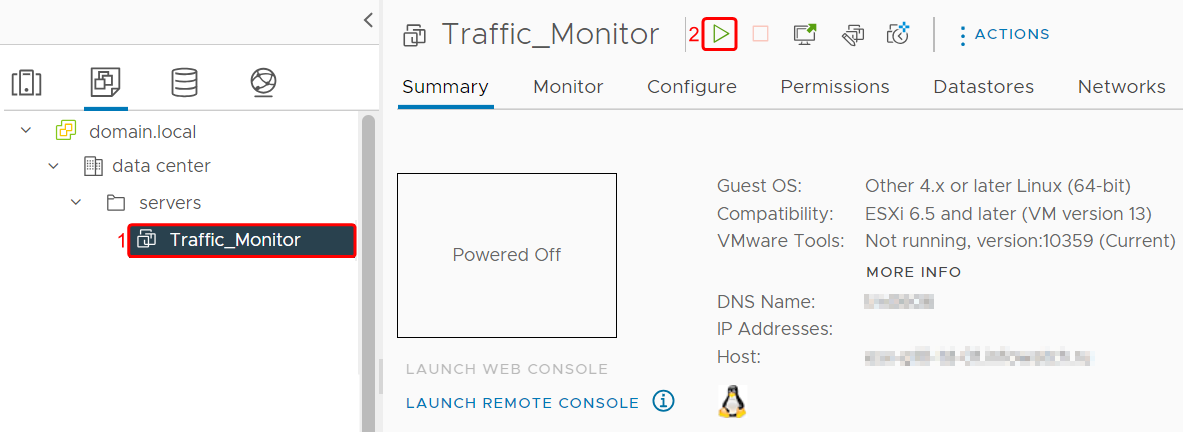
    • в случае виртуального сервера выполните команду Power On (см. пример ниже).

Раскрыть
titleПример запуска виртуального сервера:
Информация
titleПримечание:

В этой инструкции приводятся примеры по работе с виртуальным сервером в веб-версии клиентского приложения одной из наиболее часто используемых сред виртуализации – VMware vSphere (VMware vSphere Client).

Рамками на рисунках выделены области интерфейса, которые нужно последовательно выделять щелчком мыши для достижения требуемых результатов.

  1. Запустите веб-версию клиентского приложения VMware vSphere Client. Войдите в приложение, используя логин и пароль, выданные администратором вашей информационной сети.
  2. Последовательно раскройте все узлы в левой части рабочей области, пока не дойдете до нужного виртуального сервера.
  3. Включите виртуальный сервер:
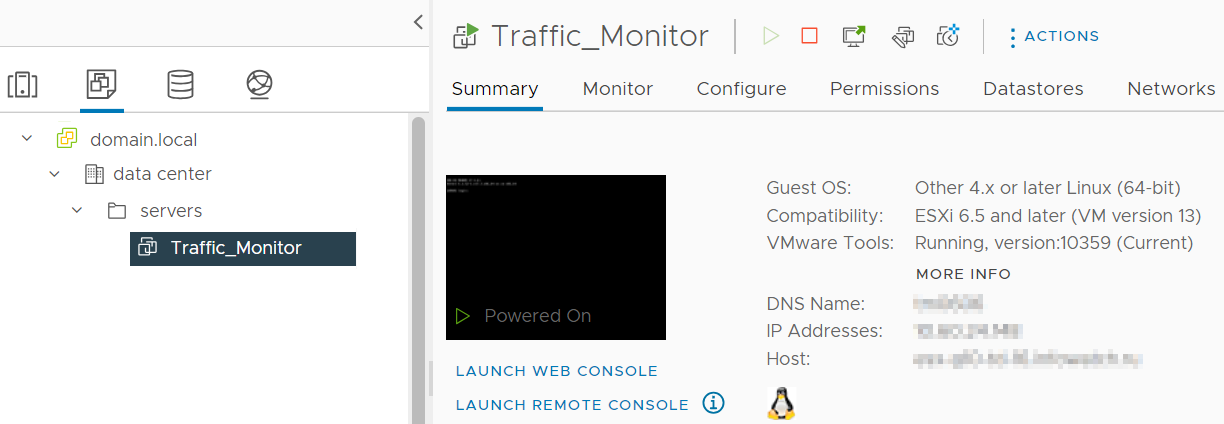
  4. Через некоторое время виртуальный сервер включится и клиентское приложение примет вид:
Обновление Системы

Обновите серверы согласно инструкциям:

Если вы используете Data Storage, рекомендуем обновить его. Инструкция: Обновление Data Storage.

Сведения по обновлению подсистемы Device Monitor смотрите в документе InfoWatch Device Monitor for Windows. Руководство по установке, конфигурированию и администрированию или InfoWatch Device Monitor for Linux. Руководство по установке.

После обновления

Учитывайте особенности работы Системы:

  • после обновления предустановленные привилегии на полное управление запросами и отчетами для пользователей с ролями Офицер безопасности и Администратор в Системе отсутствуют;
  • при наличии выгрузок из БД нужно будет подождать до 7 минут после обновления Системы для корректной работы технологии анализа. Если ждать нельзя, добавьте любой элемент технологии выгрузок из БД и примените конфигурацию. После этого добавленный элемент может быть удален.


Якорь
1
1
Удаление дубликатов графических объектов

Перед тем, как приступить к обновлению Системы до версии 7.1416.x, запустите скрипт, позволяющий определить наличие дубликатов графических объектов и инициирующий их удаление. Для этого в используемой консоли СУБД PostgreSQL выполните запрос: 

Блок кода
languagetext
//Автоматическое удаление дублирующихся отпечатков графических объектов
with fingerprint_to_delete as (
   with duplicate_contents as (
     select content_id, count(f2c.fingerprint_id) cnt
     from fingerprint_to_content_sb f2c
     left join fingerprint_sb f on f.fingerprint_id=f2c.fingerprint_id
     where f.type =  'image_classifier'
     group by content_id
     having count(f2c.fingerprint_id) >  1
   )
   select f2c.fingerprint_id
   from duplicate_contents dc
   left join fingerprint_to_content_sb f2c on f2c.content_id = dc.content_id
   where f2c.fingerprint_id not in (
     select (select fingerprint_id from fingerprint_to_content_sb where content_id=dc.content_id limit  1 )
     from duplicate_contents dc
   )
order by dc.content_id
)
delete from fingerprint_sb
where fingerprint_id in (select fingerprint_id from fingerprint_to_delete);

При отсутствии дубликатов Система уведомит вас об этом и вы сможете приступить к обновлению.

После завершения работы скрипта осуществите выход пользователя из базы данных.

Sv translation
languageen
Предупреждение
titleImportant!
  • Traffic Monitor can be updated to version 7.1415.x from versions 7.1213.x and 7.1314.x. For the history of releases, check the article InfoWatch Traffic Monitor Documentation.
  • Traffic Monitor update is not supported when connecting to server via HP Integrated Lights Out (ILO).

  • During the update, events are neither intercepted nor analyzed.
Информация
titleNote:

The System is updated from a connected repository.

A repository is a folder that contains files and other folders and provides them on demand to the OS. In other words, a repository is a storage from which programs can be installed or updated. Before using the repository, you need to connect it so that the OS could access it.You can find a Guide on how to work with the repository on the Red Hat Enterprise Linux official website.

Информация
titleNote:

During IW Traffic Monitor update, the operations that require sysdba rights will be performed:

Раскрыть
titlewhen using the Oracle DBMS
  • iwtm_logon_trg trigger creation that is needed to provide iwtm_linuxand iwtm_web users with access to objects of the iwtm scheme;
  • creation of the sp_iwtm_execute_os_command procedure to run OS commands when creating, deleting, archiving, and restoring tablespace files;
  • setting user profile by default (password lifetime, password change limit and connection attempts limit);
  • setting service windows of dbms_scheduler;
  • disabling access to XDB using HTTP protocol;
  • disabling dispatcher, as a particular server is used;
  • providing iwtm user with:
    • DB scheme installation, update, and uninstallation rights;
    • tablespaces creation, deletion, archiving, and restoring rights;
    • rights that are used in InfoWatch Traffic Monitor code;
    • rights to access DB statistics.
Раскрыть
titlewhen using the PostgreSQL DBMS
  • creation of wraper functions to read files, stop and terminate sessions, create tablespaces and provide iwtm with rights for them;
  • removing all views (view) and functions from the iwtm scheme to create the required ones in the new version using the update;
  • providing iwtmuser with:
    • rights to create DB objects;
    • rights to install, update, and uninstall the DB scheme;
    • rights to create, remove, archive, and restore tablespaces;
    • rights to clear postgresserver statistics that are used in the pgstat diagnostics script;
    • rights for statistic views (view) and tables to collect statistics of DB operation;
    • rights that are used in InfoWatch Traffic Monitor code;
    • rights to view DB statistics;
    • rights for pgagent scheme to create and manage jobs (job).

Before the update

Take the following actions:

  • Apply the configuration. If the configuration is not applied before the update, it will be forcefully applied.
  • If the Password Disclosure Adapter (PDA) is installed and running in the System, stop its processes before updating the TM. To learn more, see the InfoWatch Password Disclosure Adapter. Installation and configuration guide. Diagnostics and removal of the InfoWatch Password Disclosure Adapter.

  • Make sure that you have:
    • the ISO image of the distribution disk of the OS on which Traffic Monitor is installed. For supported OS versions, see Аппаратные и программные требования;
    • InfoWatch Traffic Monitor distributive of the version to which you want to update the System;
    • access to a physical or a virtual server (or servers) which you want to update;
    • Password for the root user.
  • Find out:
    • the System installation type (it can be All-in-One or Distributed installation) – this information is required to choose the right instruction for the update;

    • which DBMS is used (Oracle or PostgreSQL) – this information is required for updating the database scheme and server components;
    • the server where web-gui is installed – this information is required to clear the server cache after updating the database scheme.
      Tip: the package is installed on the server to which the Traffic Monitor Management console is connected.
Информация
titleNote:

In case sudo -i command was used when installing the product, make sure you use the same command to update the System in RED OS.

  • Run the script to define duplicates of graphical objects in the System and delete them.
  • Turn on each server you want to update (in case it is off):
    • for a physical server – press the power button on the server (for details, see instructions for the server);
    • for the virtual server – run the Power On command (see the example below).
Раскрыть
titleExample of running a virtual server:
Информация
titleNote:

This instruction contains examples of working with a virtual server in the web version of a client application of one of the most common virtualization environments – VMware vSphere (VMware vSphere Client).

In frames, you can see interface areas that you need to click in the specified order to achieve the desired results.

  1. Run the web version of the VMware vSphere Client application. Authorize in the application using the login and password issued by the administrator of your network.
  2. Consistently expand all the nodes on the left side of the workspace until you see the required virtual server.
  3. Turn on the virtual server:
  4. After a while, the virtual server will start and the client application will look as follows:

Updating the System

Update the servers according to the instructions:

If you use Data Storage, we recommend updating it. Instruction: Updating Обновление Data Storage.

For information on how to update the Device Monitor subsystem, see InfoWatch Device Monitor. Installation, Configuration and Administration Guide or InfoWatch Device Monitor for Linux. Installation Guide.

After the update

Consider the following:

  • after the System is updated, preinstalled privileges for complete requests and reports management are unavailable for users with the Security officer and Administrator roles;
  • when using DB unloadings, you should wait for 7 minutes after the update is complete to ensure the correct operation of the analysis technology. In case you cannot wait, add one element of DB unloading technology and apply the configuration. You can delete the added element right after this.


Якорь
1
1
Duplicate-defining script

Before starting the update to version 7.1415.x, run the script to define the duplicates of graphical objects in the System and delete them. To do this, run the following script in the PostgreSQL DBMS console: 

Блок кода
languagetext
//Automatic deletion of duplicate graphic object imprints
with fingerprint_to_delete as (
   with duplicate_contents as (
     select content_id, count(f2c.fingerprint_id) cnt
     from fingerprint_to_content_sb f2c
     left join fingerprint_sb f on f.fingerprint_id=f2c.fingerprint_id
     where f.type =  'image_classifier'
     group by content_id
     having count(f2c.fingerprint_id) >  1
   )
   select f2c.fingerprint_id
   from duplicate_contents dc
   left join fingerprint_to_content_sb f2c on f2c.content_id = dc.content_id
   where f2c.fingerprint_id not in (
     select (select fingerprint_id from fingerprint_to_content_sb where content_id=dc.content_id limit  1 )
     from duplicate_contents dc
   )
order by dc.content_id
)
delete from fingerprint_sb
where fingerprint_id in (select fingerprint_id from fingerprint_to_delete);

In case there are no duplicates, the System will inform you to start the update.

After the script execution has been completed, logout from the database.